Windows 11 Tip: Open PowerShell/CMD in Any Folder with One Click!
Unlock Efficiency: Open PowerShell or Command Prompt in Any Folder with a Single Click on Windows 11
Windows 11 offers a wealth of features designed to boost productivity, and sometimes the most powerful tools are the simplest. For users who frequently work with the command line – whether it’s for scripting, system administration, or quick file manipulations – the ability to swiftly open PowerShell or Command Prompt (CMD) directly within a specific folder can be a significant time-saver. Instead of navigating through menus or typing lengthy paths, you can execute commands right where you need them. This guide will walk you through the easy methods to achieve this, maximizing your efficiency and streamlining your workflow. We’ll cover both launching PowerShell and ensuring “Open in Terminal” defaults to Command Prompt, giving you complete control over your command-line experience. This is a crucial tip for developers, IT professionals, and power users alike, especially as the demand for command-line proficiency continues to grow in the tech landscape.
Why Use PowerShell or CMD from a Specific Folder?
Before diving into the “how-to,” let’s quickly address the “why.” Opening a terminal within a specific folder offers several advantages:
- Contextual Commands: You can execute commands directly related to the files and subfolders within that directory without needing to constantly type out full paths.
- Simplified Scripting: When working on scripts that operate on files in a particular location, starting the terminal there eliminates the need for complex path adjustments.
- Faster Workflow: Reduces the number of steps required to perform common tasks, leading to increased efficiency.
- Troubleshooting: Quickly diagnose issues within a specific directory by running commands directly in that context.
In today’s fast-paced tech environment, even small efficiency gains can add up to significant time savings. Mastering this Windows 11 tip is a step towards a more streamlined and productive workflow.
Opening PowerShell from a Specific Folder
The quickest way to launch PowerShell from a desired folder is remarkably simple. Here’s how:
- Navigate to the Folder: Open File Explorer and browse to the folder where you want to open PowerShell.
- Shift + Right-Click: Hold down the Shift key on your keyboard and right-click on an empty space within the folder.
- Select “Open PowerShell window here”: From the context menu that appears, choose the option labeled “Open PowerShell window here.”
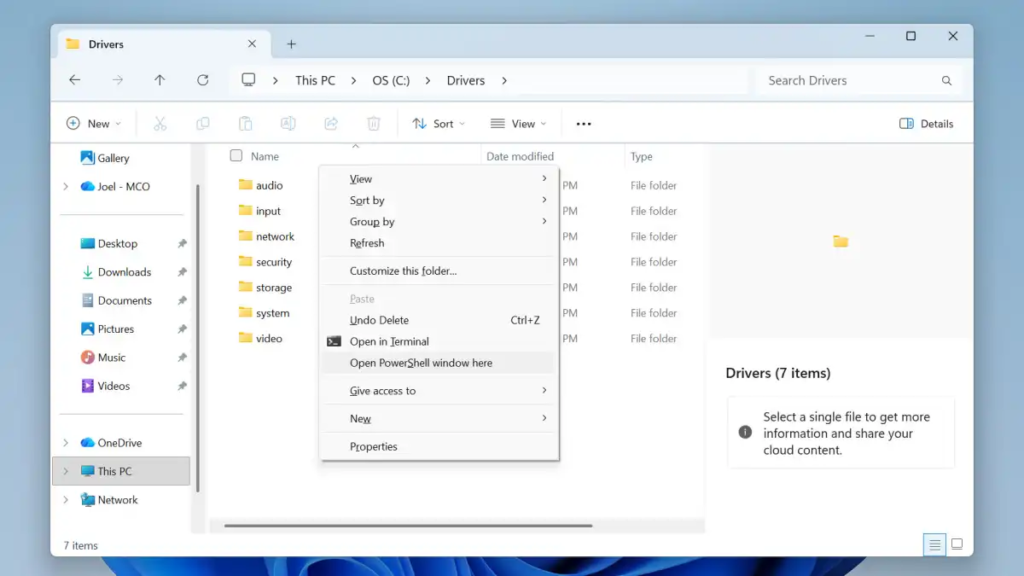
A new PowerShell window will instantly open, with the current folder set as its default location. You’re now ready to execute commands within that context.
Opening Command Prompt (CMD) with “Open in Terminal”
Windows 11 also provides a convenient option to open a terminal window – which, by default, often launches PowerShell – directly from a folder. Here’s how to use it:
- Navigate to the Folder: Open File Explorer and go to the desired folder.
- Right-Click: Right-click on an empty space within the folder.
- Select “Open in Terminal”: Choose the “Open in Terminal” option from the context menu.
However, as noted, this often defaults to PowerShell. If you prefer Command Prompt, continue reading the next section.
Making “Open in Terminal” Launch Command Prompt by Default
If you consistently prefer using Command Prompt over PowerShell when using the “Open in Terminal” option, you can easily change the default behavior. Here’s how:
- Open Terminal (PowerShell): Use the “Open in Terminal” option from a folder to launch PowerShell.
- Access PowerShell Settings: Within the PowerShell window, press Ctrl + , (Ctrl + comma) to open the Settings.
- Navigate to Startup Settings: In the Settings window, select Startup from the left-hand menu.
- Change Default Profile: Under the Default profile section, use the dropdown menu to select Command Prompt.
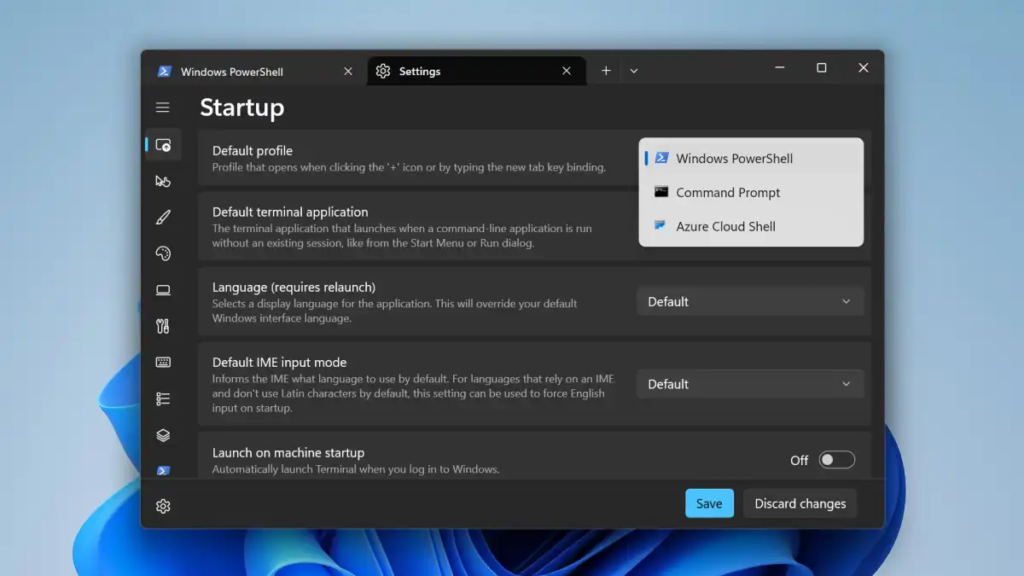
From now on, whenever you select “Open in Terminal” in Windows 11, it will automatically launch Command Prompt instead of PowerShell. This customization ensures your workflow aligns with your preferred command-line environment.
The Future of Command Line in Windows
Microsoft continues to invest in the Windows Terminal, a modern and powerful command-line application. The Windows Terminal supports multiple shells (PowerShell, CMD, WSL) in a single window, with customizable themes and keybindings. While the methods described above are effective for Windows 11, exploring the Windows Terminal offers even greater flexibility and control. Recent updates to the Windows Terminal (as of late 2023/early 2024) have focused on improved performance, accessibility, and integration with cloud-based development environments. The trend towards cloud computing and remote development is driving the need for robust and versatile command-line tools, and the Windows Terminal is positioned to be a key component of that ecosystem.
Furthermore, the increasing adoption of DevOps practices and automation is fueling the demand for command-line proficiency. Understanding how to efficiently navigate and execute commands within specific folders is a fundamental skill for anyone involved in these areas. According to a recent Stack Overflow Developer Survey, over 60% of developers use the command line on a daily basis.
Conclusion
Mastering these simple techniques for opening PowerShell or Command Prompt from any folder in Windows 11 can significantly enhance your productivity. Whether you’re a seasoned developer, a system administrator, or simply a power user, these tips will help you streamline your workflow and get more done. Remember to customize the “Open in Terminal” setting to match your preferred shell, and consider exploring the advanced features of the Windows Terminal for even greater control over your command-line experience. By embracing these tools, you can unlock a new level of efficiency and take full advantage of the power of the Windows command line.
“`