3 Windows 11 Tweaks for a Fresher, Cleaner Experience
3 Windows 11 Tweaks for a Fresher, Cleaner Experience
Microsoft’s introduction of Windows 11 brought a significant focus on user-centric design principles and aesthetic refinement. The company emphasized a shift towards simplicity, coherence, and elegance, aiming for an interface that feels familiar, comfortable, and instantly usable. While Windows 11 largely delivers on this promise with a cleaner and more visually appealing user interface compared to its predecessors, the out-of-the-box experience isn’t always optimal. Default configurations can sometimes feel cluttered and distracting. Fortunately, achieving a streamlined and minimalist Windows 11 setup is surprisingly straightforward – you just need to know where to look. This article details three key tweaks to transform your Windows 11 PC from a potentially overwhelming system into a productivity-focused machine.
Decluttering the Taskbar for Enhanced Focus
The Windows 11 taskbar, upon initial setup, can feel somewhat crowded. Microsoft has faced criticism for removing certain customization options present in earlier Windows versions, such as the ability to freely resize and reposition the taskbar. However, the remaining customization options offer a good degree of flexibility. You can easily adjust icon positioning, add or remove app labels, modify the date and time display in the system tray, and more. The goal is to minimize distractions and maximize screen real estate.
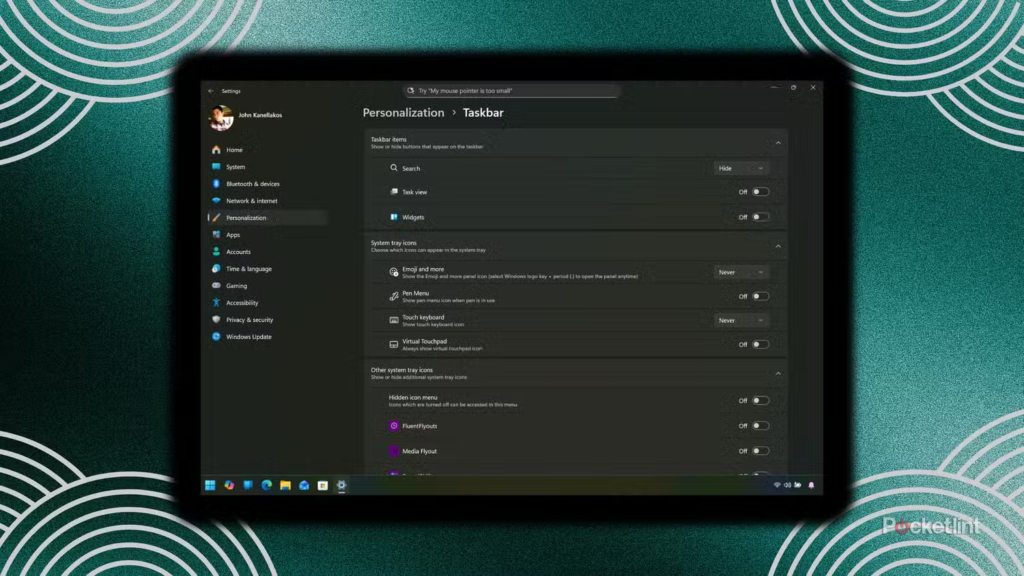
To create a truly clean and distraction-free taskbar, consider hiding or disabling the following elements:
- Search
- Task View
- Widgets
- Emojis & More
- Pen Menu
- Touch Keyboard
- Virtual Touchpad
- Language Bar
- Hidden Icons Menu
Additionally, disabling app labels, removing the date and time display from the lower-left corner, and enabling auto-hide for the taskbar can contribute to a significantly cleaner desktop environment. These simple adjustments can dramatically improve focus and reduce visual clutter.
Turning Off Unwanted Advertisements and “Tips”
Beyond privacy concerns, the inclusion of advertisements and “value-added” tips within Windows 11 is a frequent point of contention. Given that Windows 11 is a paid operating system, the presence of these potentially distracting and resource-intensive elements feels intrusive to many users. The latest data from Statista shows that user dissatisfaction with pre-installed bloatware and unwanted promotions is a growing trend across all operating systems, with Windows 11 being a particular focus of criticism.

Even a “clean install” of Windows 11 isn’t entirely free of these elements. However, most advertisements can be removed without resorting to third-party software or complex workarounds. Here’s how:
- Remove Start Menu advertisements: Go to Settings > Personalization > Start and toggle off “Show recommendations for tips, shortcuts, new apps, and more.”
- Remove Lock Screen advertisements: Go to Settings > Personalization > Lock screen and toggle off “Get fun facts, tips, tricks, and more on your lock screen.”
- Remove Notification advertisements: Go to Settings > System > Notifications and toggle off “Get tips and suggestions when using Windows.”
These simple steps significantly reduce the number of unwanted promotions and distractions within the Windows 11 experience.
Streamlining Your Desktop for Maximum Productivity
By default, Windows 11 displays several icons on the desktop, including the Recycle Bin and a shortcut to Microsoft Edge. For many users, this can quickly lead to a cluttered and disorganized desktop, hindering productivity. A recent survey by DeskMag found that users spend an average of 5 minutes per day searching for files on their desktop, highlighting the impact of desktop clutter on efficiency.
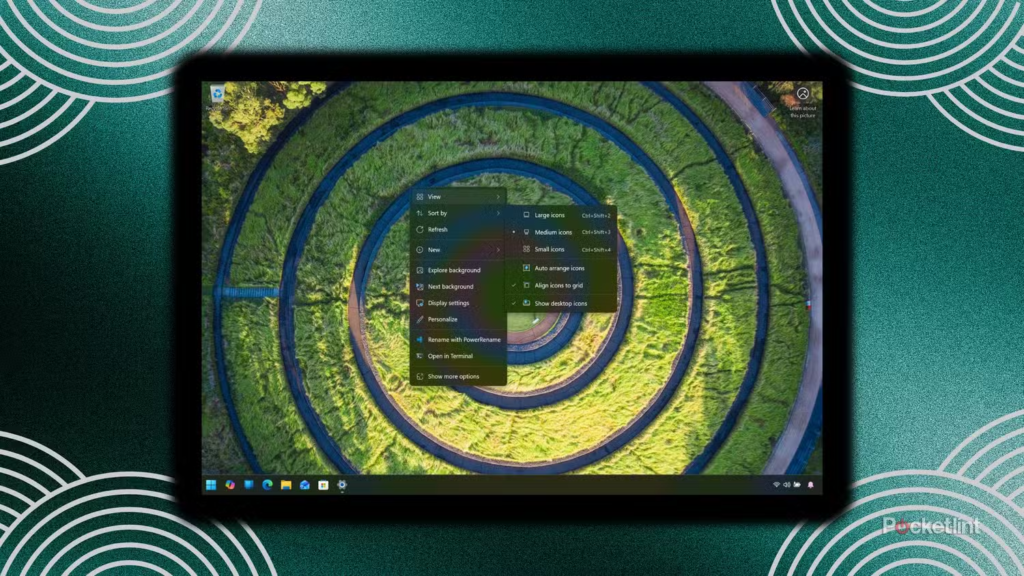
The ability to quickly switch to a clean desktop without disrupting the arrangement of existing icons is a valuable tool. To hide all desktop icons, right-click on an empty area of the desktop and select View > Show desktop icons. You can also delete or move unnecessary files, folders, and shortcuts to other locations within File Explorer for a more organized appearance. Pinning the Recycle Bin to the File Explorer sidebar provides quick access without cluttering the desktop. Maintaining a clean desktop promotes focus and reduces the time spent searching for files.
By implementing these three simple tweaks – decluttering the taskbar, disabling advertisements, and streamlining your desktop – you can significantly enhance your Windows 11 experience, creating a more focused, productive, and aesthetically pleasing computing environment. These adjustments align with the core design principles of Windows 11, ultimately delivering a more refined and user-friendly operating system.
“`